
AI Old Photo Restoration
Upload old, faded, scratched, or low-contrast scans and PixMelody repairs damage, restores detail, and recovers natural color — with optional realistic colorization for black and white prints, while preserving the original people and scene.
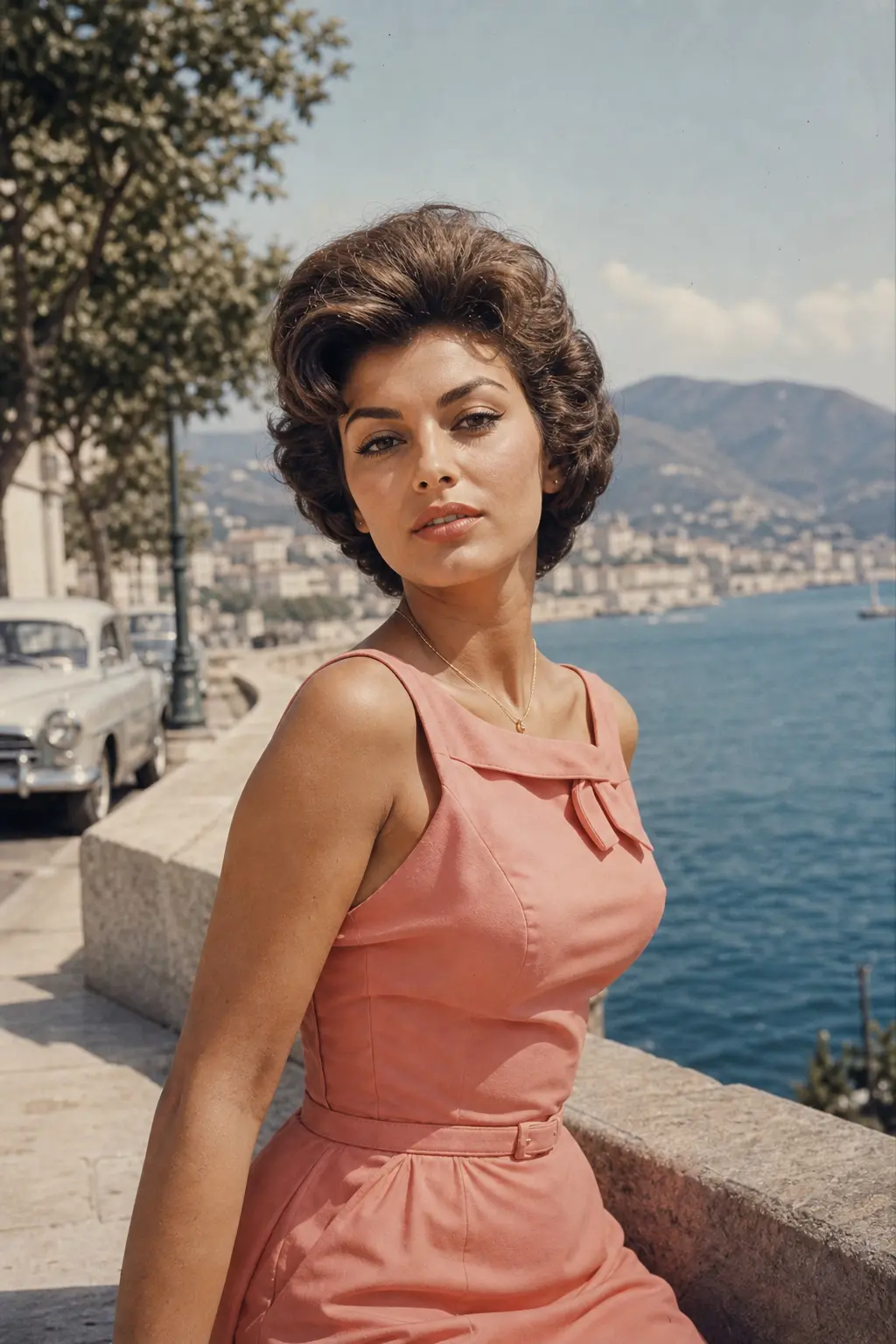
0/5
Nano Banana 2 Results
Ways to use this style
Each variation pairs a sample image with the exact prompt — copy any prompt to start.
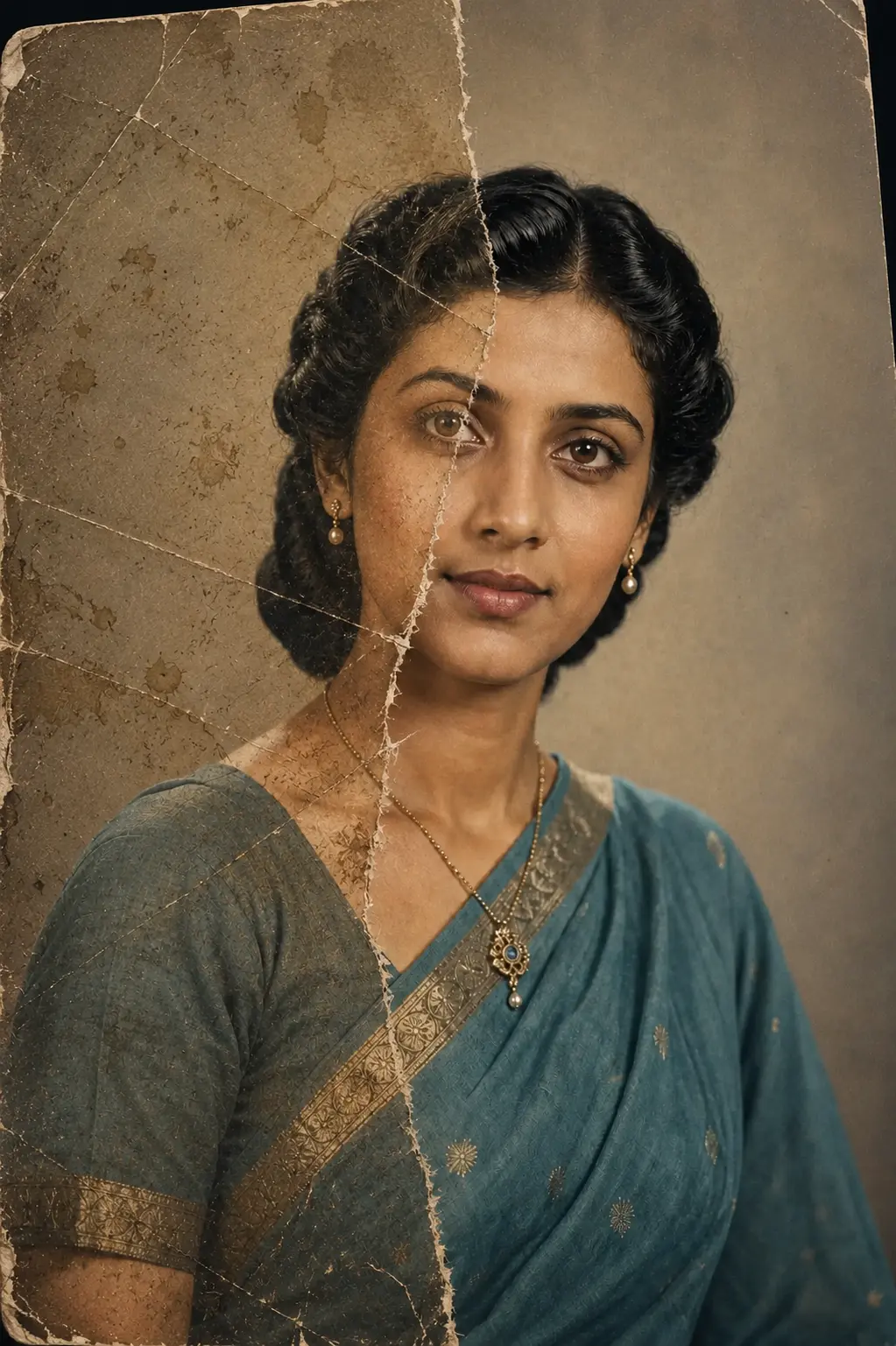
Scratch and damage repair
Removes tears, white scratches, dust, and mildew without rewriting faces or composition — keeps the original grain and period feel intact.
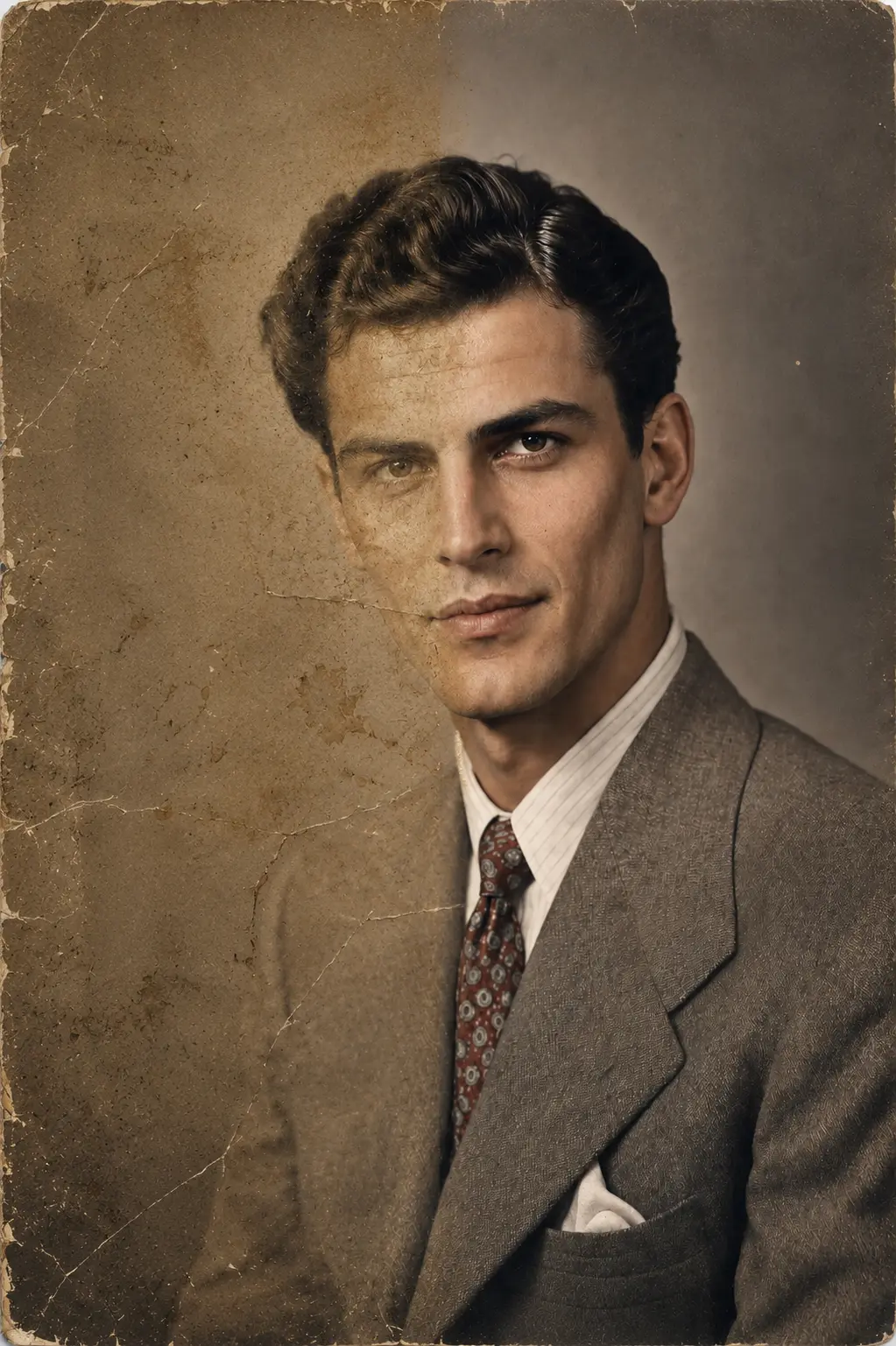
Fade and contrast recovery
Brings back tonal range and skin tone on washed-out prints while keeping the era-correct warm yellow or cool blue cast intact — not over-processed to feel modern.
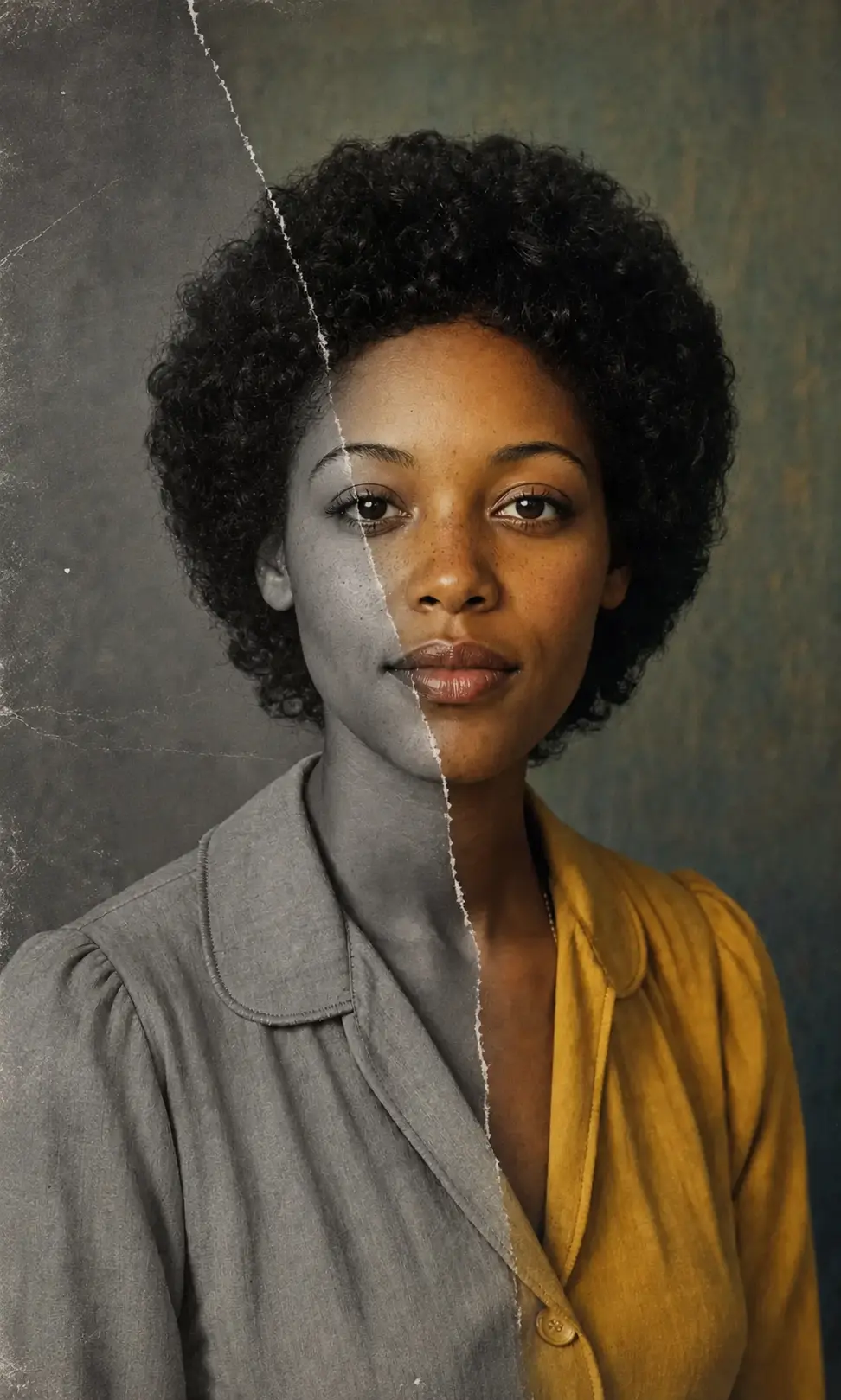
Natural colorization of black & white
Adds restrained period-accurate color to monochrome prints — skin tones, clothing, and backgrounds inferred from era cues, no oversaturated digital look.
Photo restoration prompt ideas
Use these variants when you want tighter control over scratch repair, faded prints, black-and-white colorization, or archival cleanup while keeping the original people and scene intact.
Scratch and Tear Repair
Restore the uploaded old photograph while preserving the original people, faces, clothing, pose, background, and period feel. Remove visible scratches, tears, dust, mildew spots, fold marks, and white damage lines. Reconstruct only the damaged areas naturally, recover gentle contrast and detail, and keep the original film grain and authentic archival texture. No modern beauty retouching, no changed identity, no invented new people, no text.
Faded Print Recovery
Repair the uploaded faded photo as a realistic archival restoration. Preserve every person's identity, age, expression, hairstyle, clothing, and the original scene composition. Recover natural tonal range, deepen washed-out shadows, restore highlight detail, reduce haze, and bring back era-appropriate warmth without making the image look modern or over-processed. Keep subtle paper texture and film grain.
Natural Black-and-White Colorization
Colorize the uploaded black-and-white photo with restrained, period-accurate color while preserving the original faces, pose, clothing, background, and photographic grain. Infer natural skin tones, hair color, fabric color, and environmental color from era cues. Keep the palette gentle and realistic, like a carefully restored family archive print. Avoid neon colors, modern filters, plastic skin, and any change to facial identity.
Family Archive Restoration
Restore this family archive photo for album printing. Preserve all people exactly as they appear, including face shape, age, expression, posture, clothing, and grouping. Clean dust, scratches, stains, compression artifacts, and mild blur; recover balanced contrast and natural detail; keep the original crop and historical atmosphere. Output should feel like the best possible preserved version of the same photograph, not a new photoshoot.
Recommended PixMelody models
Nano Banana 2
Nano Banana 2 keeps the speed of the base model but adds a quality dial — preview at 1K, sign off at 2K, ship at 4K. The detail in faces, hands, and material textures survives the upscale.
GPT Image 2
GPT Image 2 takes a long brief and gives back a finished image with the type set right, the references locked, and the world it depicts true to life — what diffusion-only models still get wrong.
Related styles
Black and White Portrait Generator — AI Monochrome Filter
Upload a portrait and PixMelody outputs a classic black and white image with bright catchlights, deep tonal range, and clean editorial composition — perfect for author bios, artist features, album covers, and brand bio pages.
LinkedIn Headshot Generator
Upload a casual selfie and get a studio-grade LinkedIn headshot in 30 seconds. PixMelody swaps in proper attire, cleans up lighting and background, and preserves your face — ready for LinkedIn, resumes, and team pages.
Retro Digital Camera Filter
Turn any photo into a 2000s compact digital camera snapshot — direct flash, CCD color noise, glossy highlights, mild motion blur, timestamp feel. Perfect for social avatars, event recaps, and nostalgic brand campaigns.
FAQ
What can AI old photo restoration repair?
Scratches, tears, mildew, dust, fading, low contrast, soft focus, light pixelation, and JPEG compression artifacts — all the typical issues that show up on old photos can be handled automatically by PixMelody. For black-and-white prints, you can also add restrained natural colorization.
What kind of old photo restores most cleanly?
Scan or rephotograph the original at 800×800 px or higher with the print laid flat and even light. Avoid mobile-phone flash directly on glossy prints. Faces should still be visible — when the face is largely missing, manual post-processing review is recommended on top of AI restoration.
Will it replace faces or rewrite people's appearance?
No. Identity preservation is the core goal of AI photo restoration. The model keeps face shape, expression, hairstyle, and body proportions intact while repairing damaged areas, recovering contrast, and lifting detail. When the face has large missing regions, pair the restoration with a manual review pass.
How is this different from a generic upscaler?
An upscaler interpolates pixels — it stretches scratches and fading along with everything else. AI old photo restoration does three things at once: repair damage, recover tonal contrast, and lift detail — and optimizes for face, clothing, and background separately. The output looks restored, not just larger.
How do I make the result look most natural?
Scan or rephotograph the print cleanly before uploading. If colorizing a black-and-white image, add era hints to the prompt (1950s, 1970s) and clothing cues (military uniform, qipao) to help the model land the right palette. If the first pass isn't perfect, tweak the prompt and re-run, or do a localized restoration first and then a colorization pass.
How long does each generation take?
Most runs finish in 20 to 60 seconds once you upload a photo, depending on the model, scene complexity, and current queue. Pro-tier models run a touch longer on heavy detail, and you see live progress while it works.
Can I use the generated images commercially?
Yes. As long as the source photo is yours or you have permission to edit it, outputs can be used in personal portfolios, social posts, brand campaigns, e-commerce assets, and client deliverables. For commercial use that features recognizable people or third-party brands, confirm likeness and trademark rights separately.
How many credits does this style use?
The inline generator runs on the same PixMelody account and credit system as the main creator. Each generation deducts credits based on the model you pick, and the exact cost shows live on screen. New accounts get free credits to try the style before topping up.