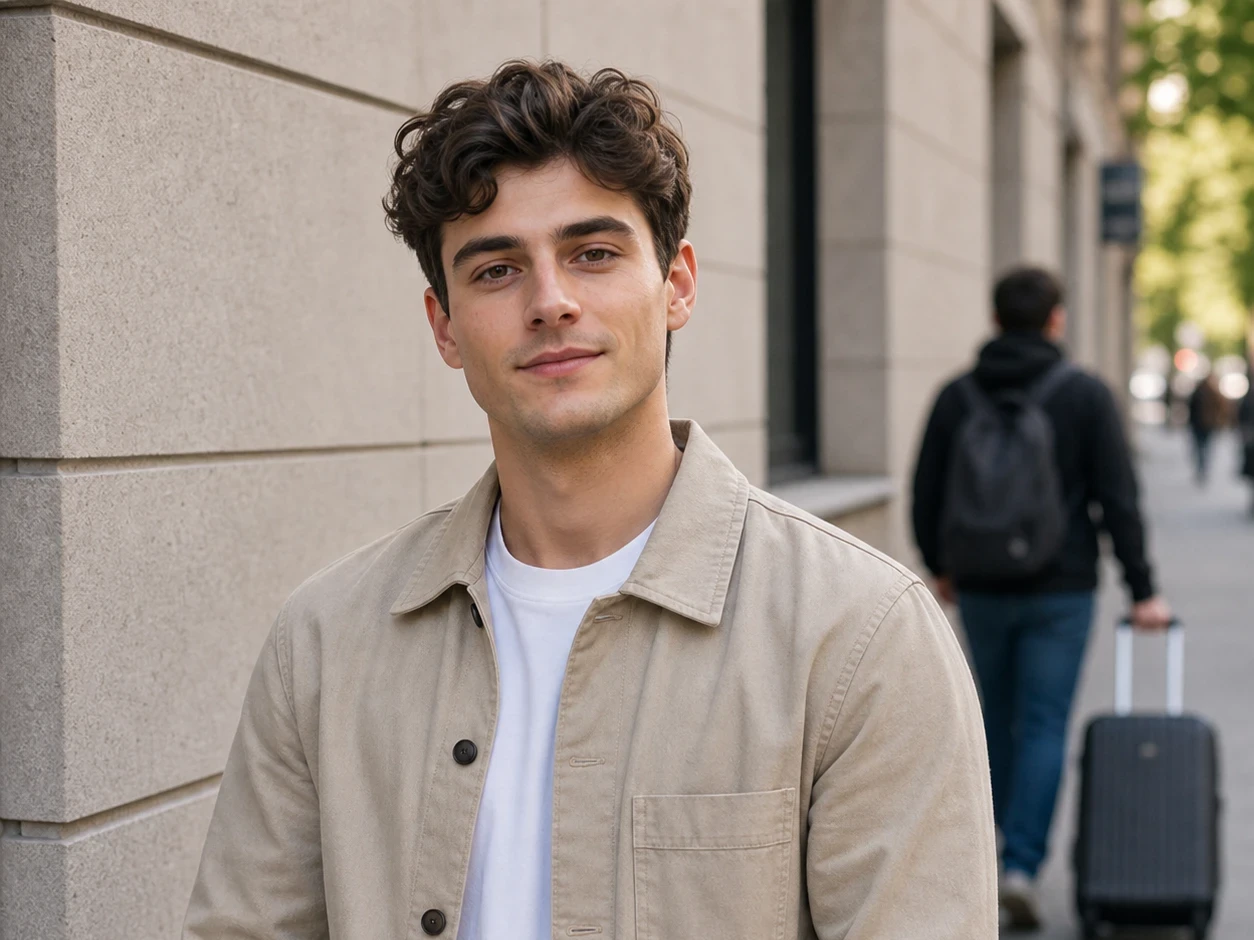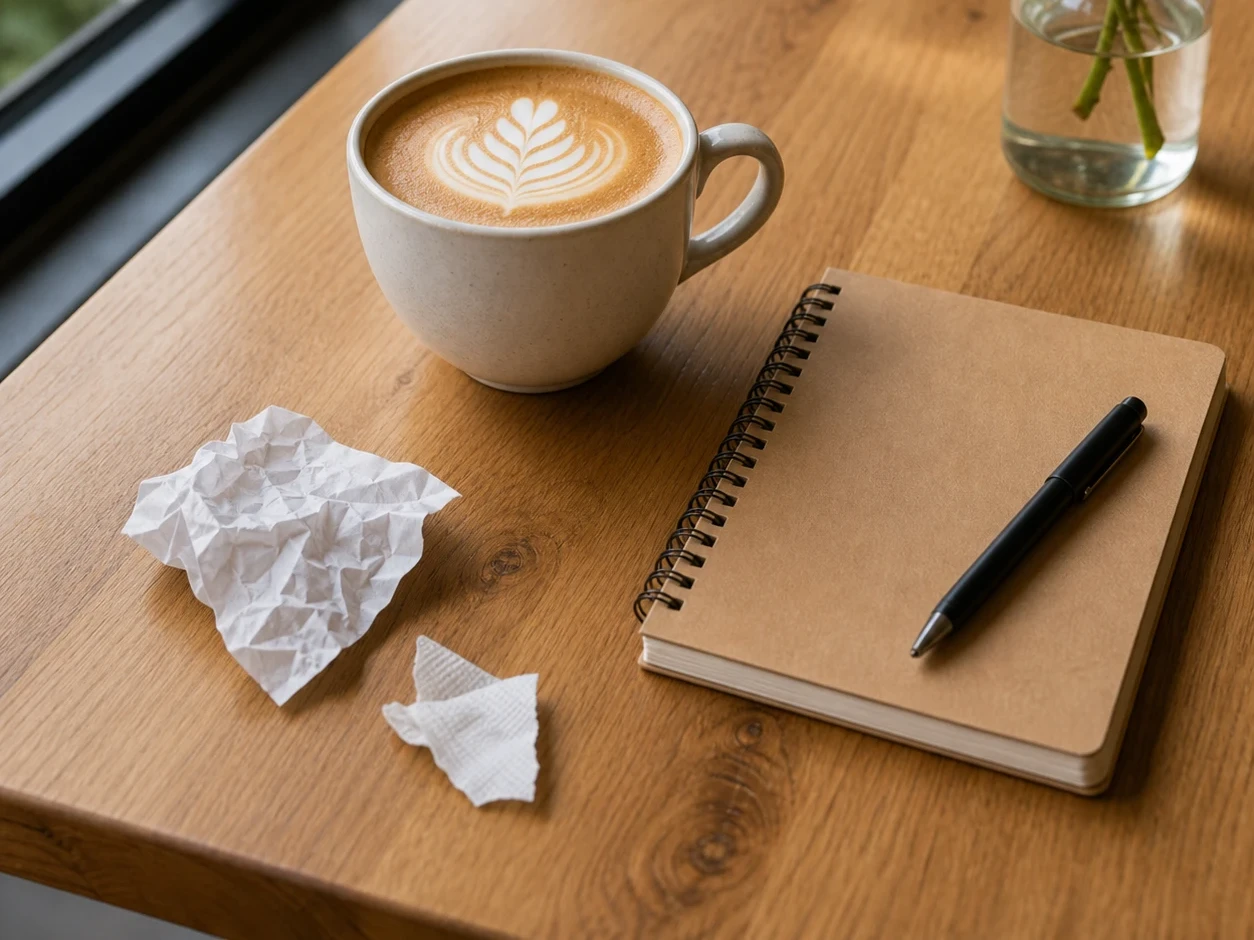
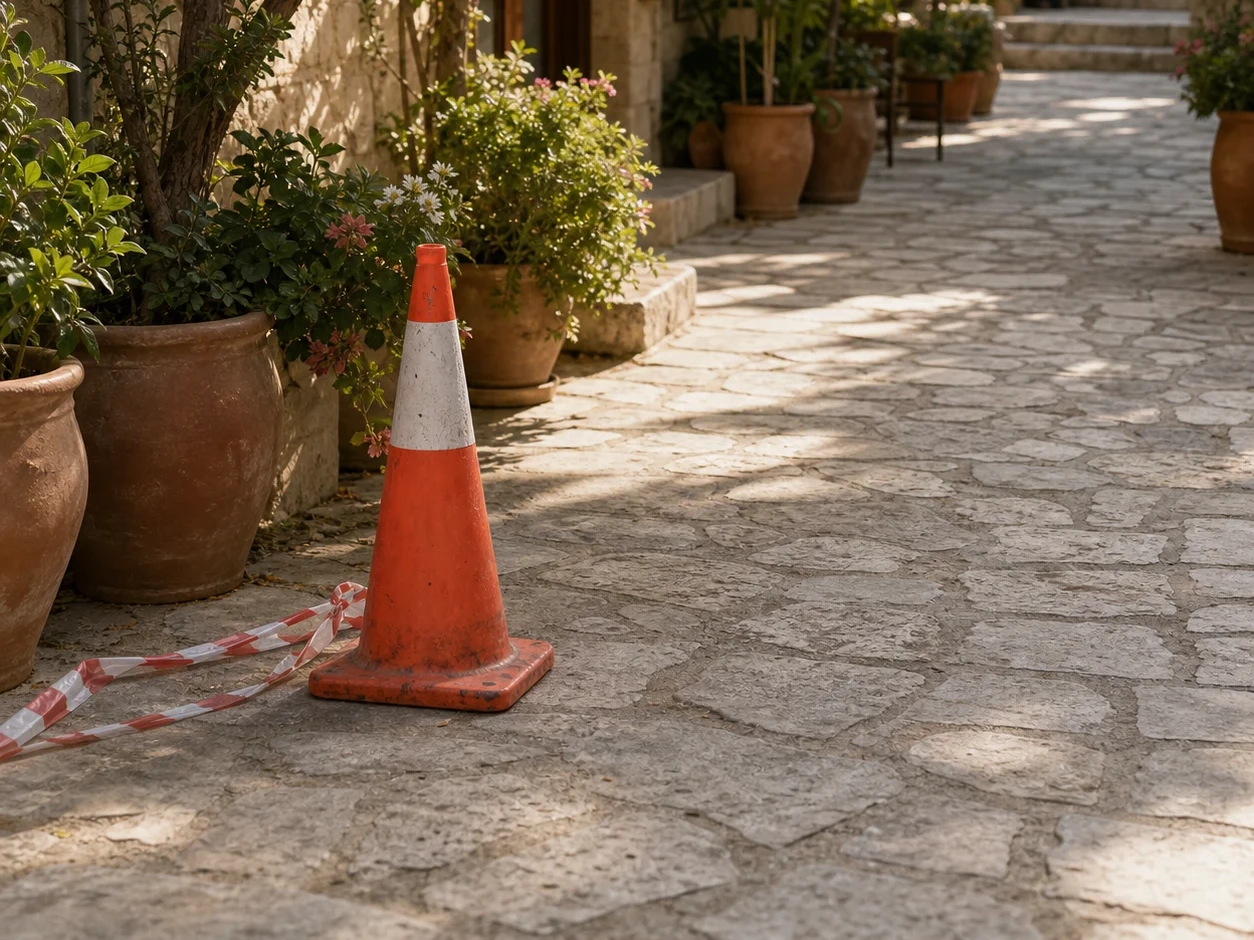
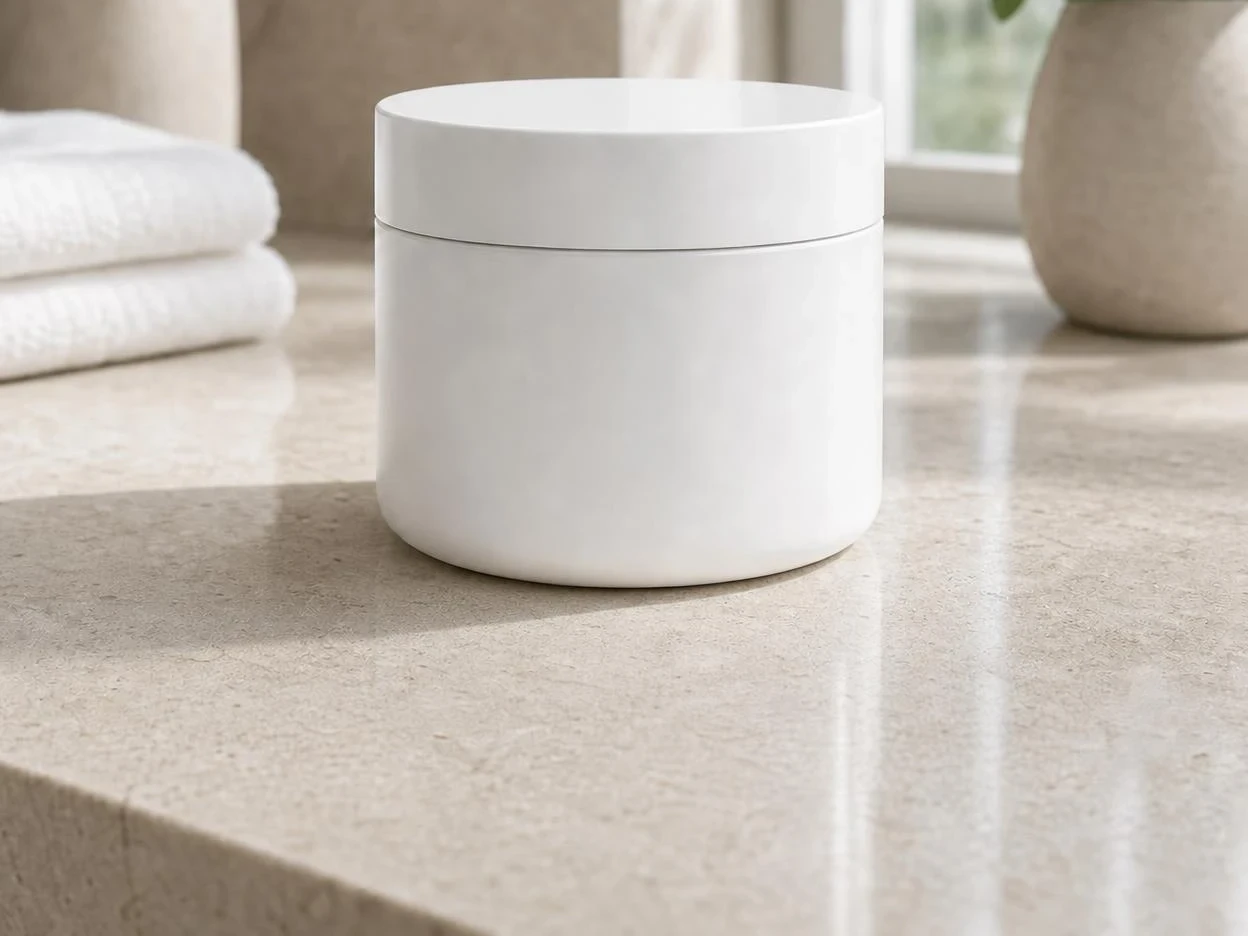
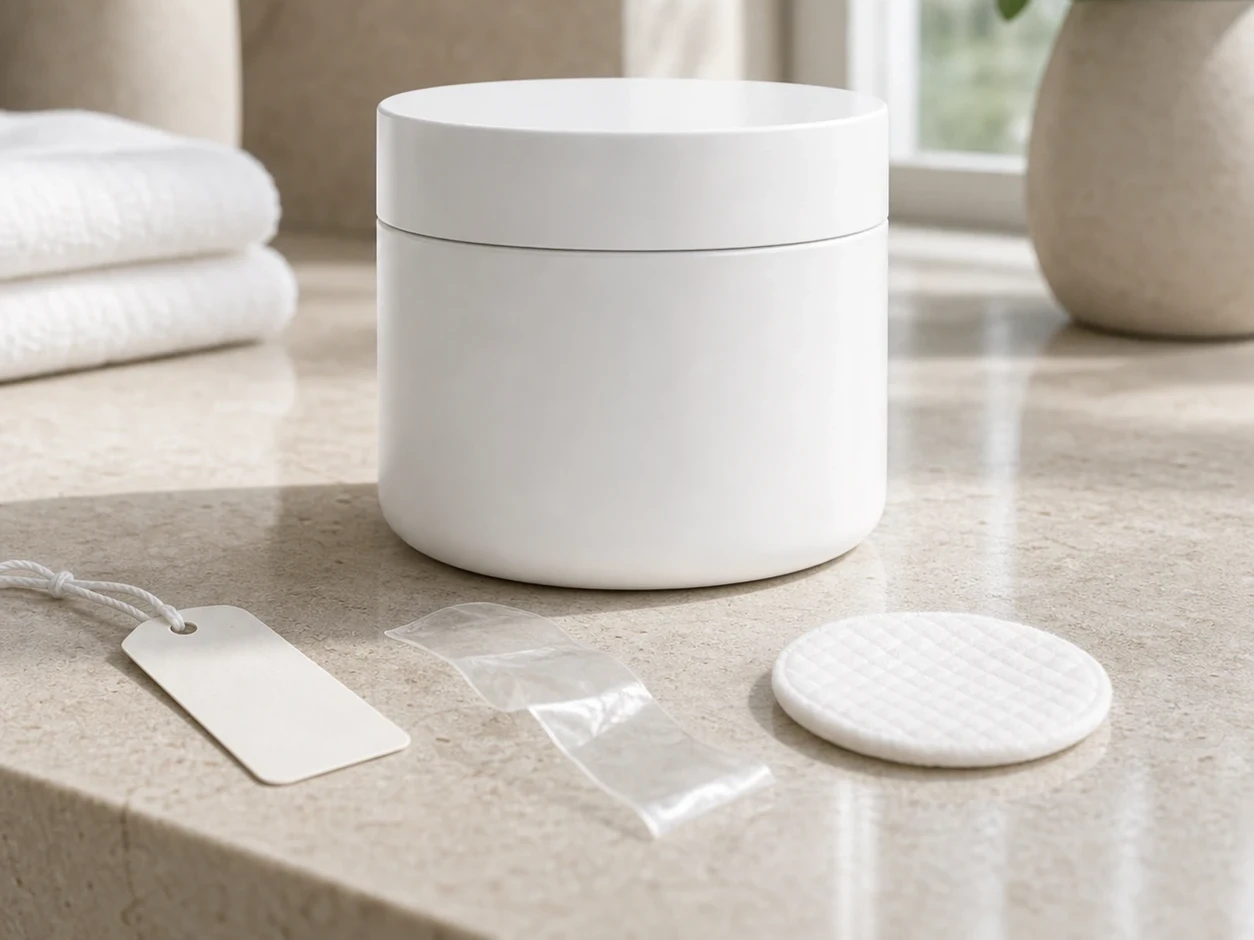
Before
After
01
Product label replaced
Mask only the damaged label on a bottle, box, or bag, then generate a clean replacement that follows the product angle and lighting.
Brush over the exact area you want to change, then describe the replacement. Use AI inpainting to fix product labels, retouch portrait details, repair old photos, or clean up small image defects without regenerating the whole image.
Drop an image to start — your result appears here
10 credits per run
Upload a product photo, portrait, flawed image, or old photo that needs one specific fix.
Brush only the object, damage, text, clothing, or detail you want the inpainting tool to replace.
Write a concrete prompt, such as “replace the torn label with a clean white coffee label” or “turn the red scarf into a navy silk scarf.”
Three concrete moments where this tool saves a step.
Clean up scratched packaging, replace a missing prop, change a label color, or remove a distracting mark before publishing a product image.
Change a scarf, repair hair gaps, replace glasses, adjust clothing details, or fix a small accessory while keeping the face untouched.
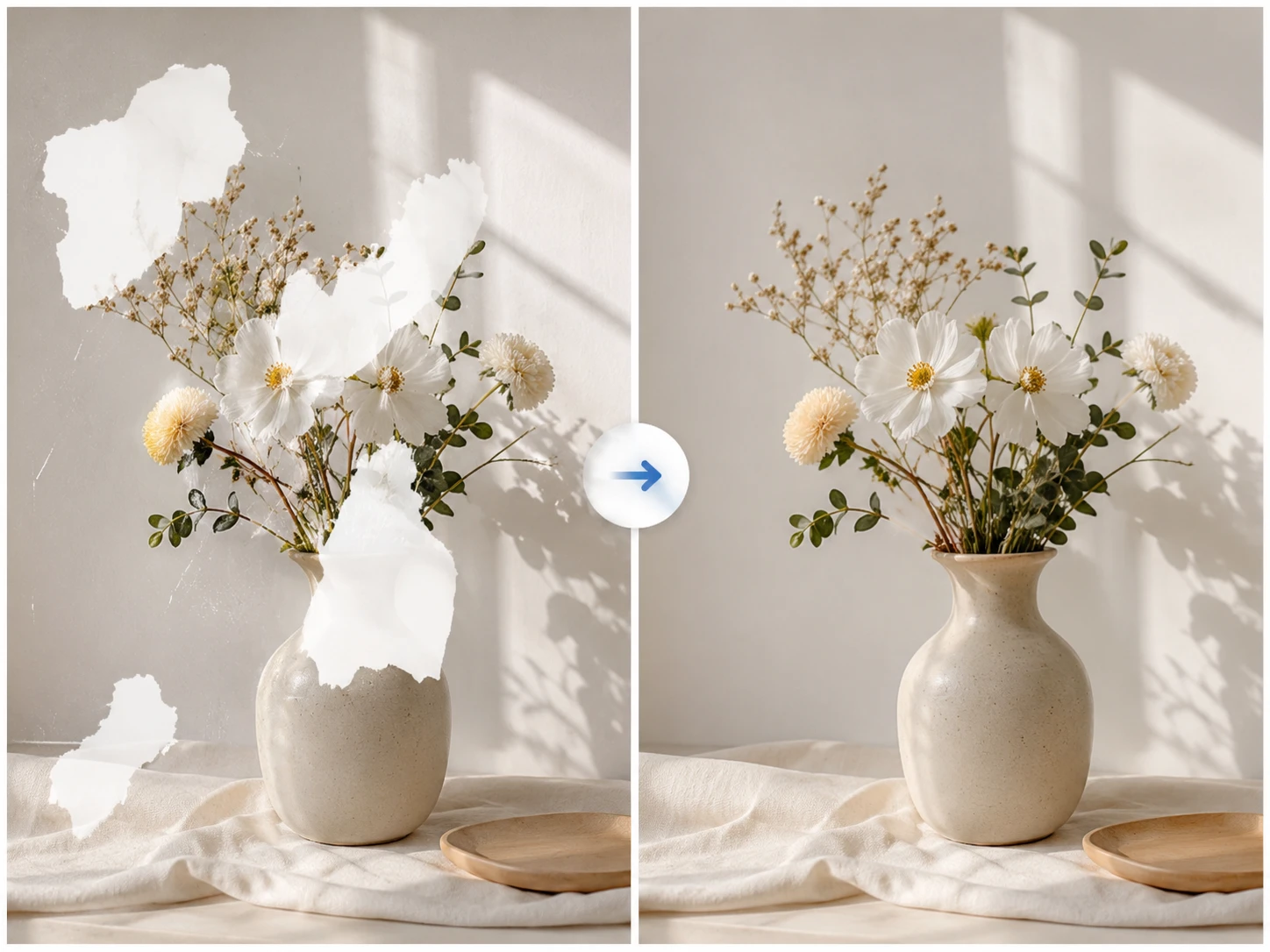
Use inpainting to repair scratches, stains, chipped edges, glare spots, or distracting small flaws so the image looks clean and natural.
Drag each image to see what changes, then run the same workflow on your own upload.
Mask only the damaged label on a bottle, box, or bag, then generate a clean replacement that follows the product angle and lighting.
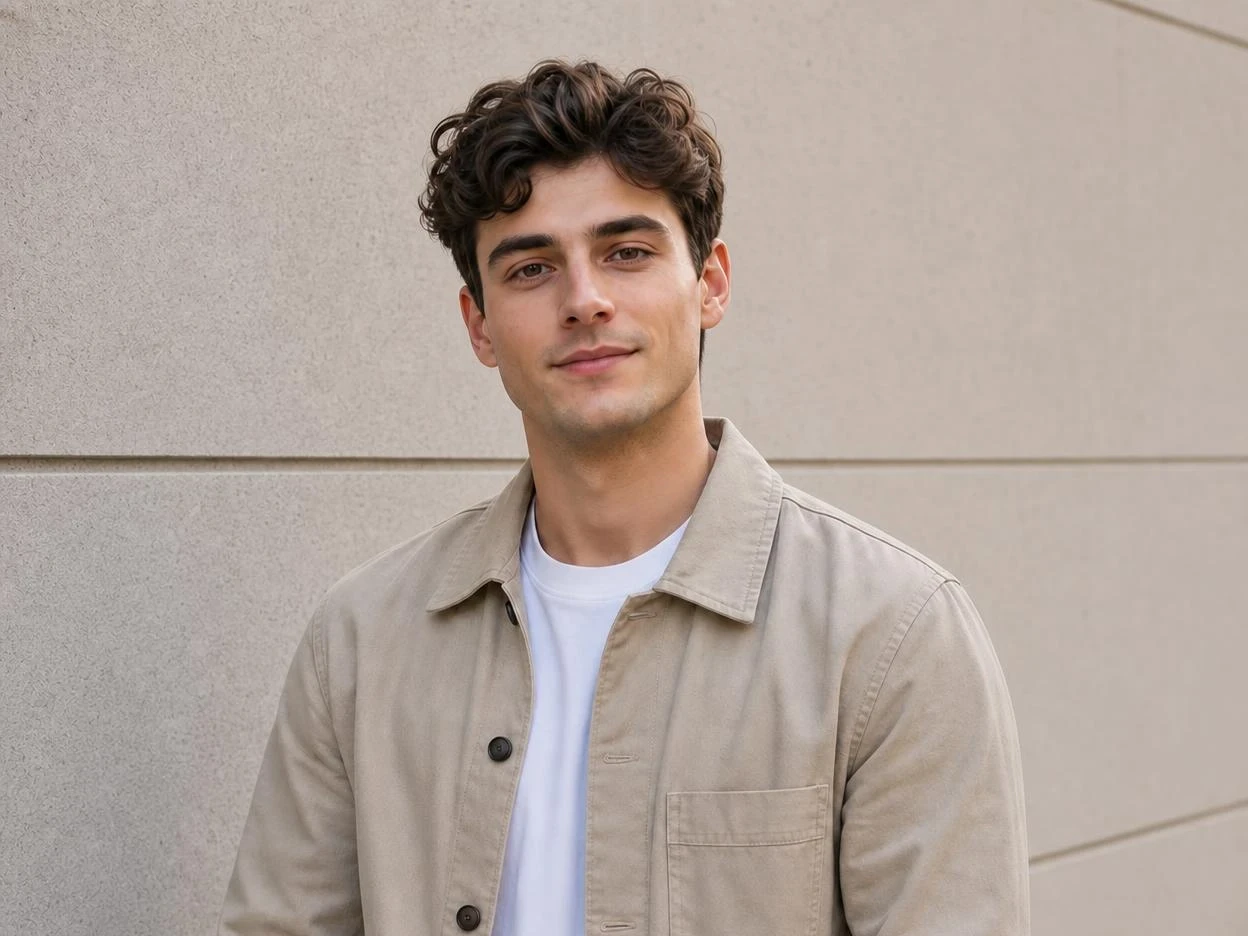
Brush over a necklace, collar, sleeve, or hair detail and describe the corrected version without changing the person’s face.
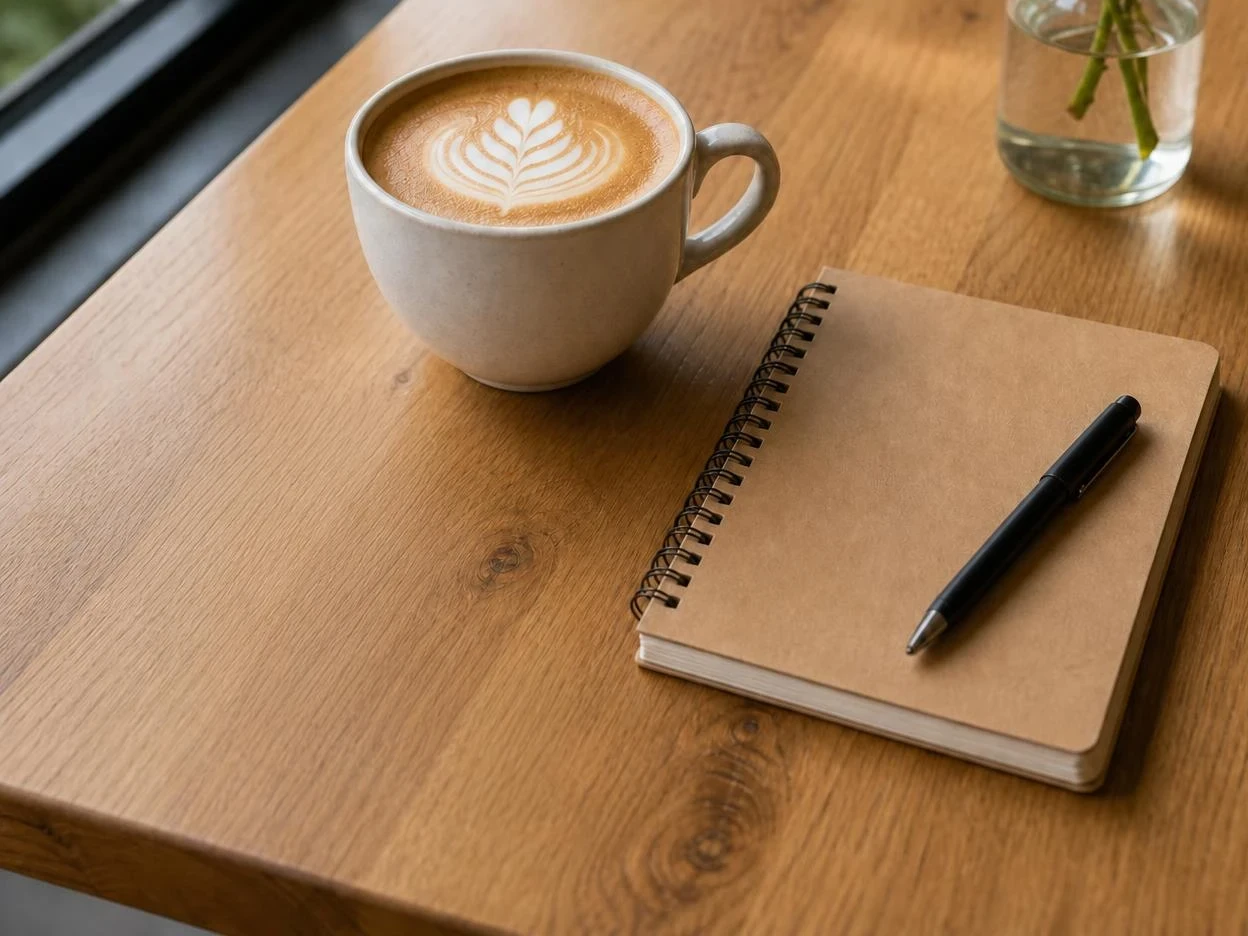
Repair scratches, stains, chipped edges, or small glare spots while preserving the original lighting, texture, and composition.
Brush only the label, sleeve, scratch, sign, prop, or object edge that needs inpainting, while the rest of the image stays untouched.
Describe the exact replacement you want, from a clean product label to a repaired necklace or removed scratches and stains.
The edited region is generated from nearby pixels so lighting, texture, style, and perspective can blend with the original photo.
GPT Image 2
GPT Image 2 takes a long brief and gives back a finished image with the type set right, the references locked, and the world it depicts true to life — what diffusion-only models still get wrong.
Nano Banana 2
Nano Banana 2 keeps the speed of the base model but adds a quality dial — preview at 1K, sign off at 2K, ship at 4K. The detail in faces, hands, and material textures survives the upscale.
AI Old Photo Restoration
Upload old, faded, scratched, or low-contrast scans and PixMelody repairs damage, restores detail, and recovers natural color — with optional realistic colorization for black and white prints, while preserving the original people and scene.
AI Glow Up Filter — Natural Beauty Portrait
Upload a portrait or selfie and the AI Glow Up filter gently lifts skin, eyes, lighting, and overall energy — same person, but as if a professional photographer reshot you. Identity preserved, ready for avatars, IG content, and personal brand pages.
Fashion Collage Generator — AI Editorial Collage
Turn photos into editorial fashion collages — layered outfits, magazine-grade composition, clean negative space. Drop straight into brand moodboards, lookbook concepts, seasonal campaigns, and creative proposal visuals.
Inpainting regenerates a selected region of an image based on your prompt while keeping everything outside the mask untouched. Use it to replace a product label, fix a portrait accessory, repair damage, or correct one flawed detail without redrawing the whole image.
The Object Remover erases content and fills the gap with nearby background. AI inpainting is better when you want a specific replacement, such as a new label on a bottle, a cleaner sleeve on a portrait, a repaired sign, or a different prop in the same position.
Name the exact object and the desired result. Prompts like “replace the cracked phone screen with a clean black screen” or “fix the missing gold earring on the left ear” give the model enough context to match the original lighting and perspective.
Yes. Product teams can use inpainting to clean up scratched packaging, replace a label color, add a missing prop, fix reflections, or remove small shoot defects before publishing images to Shopify, Amazon, Etsy, or ad creatives.
Yes. AI inpainting works well for localized flaws such as scratched packaging, clothing stains, chipped edges, wall damage, dirty tabletop marks, or small spots caused by dust on the lens. Mask the problem area and describe the clean, repaired result.
Sharp, higher-resolution images with a clear edit area work best. Keep the mask tight around the label, sleeve, scratch, object, or flaw you want to change; very large masks or complex perspective changes may need a few tries.
You can try inpainting for free, and commercial use is fine when you hold the rights to the uploaded image and the content you generate. The tool does not remove copyright, trademark, or licensing obligations tied to the source image.