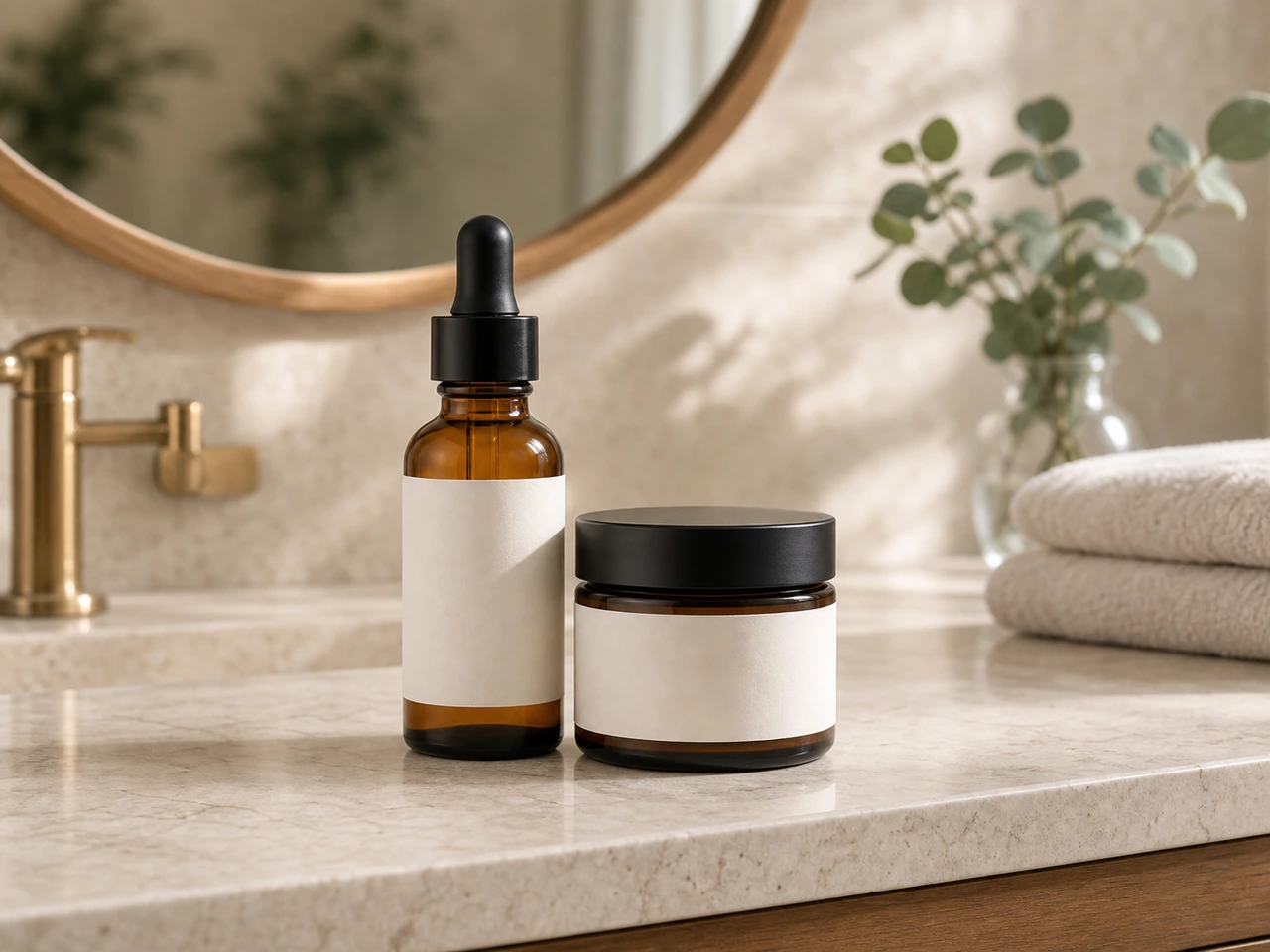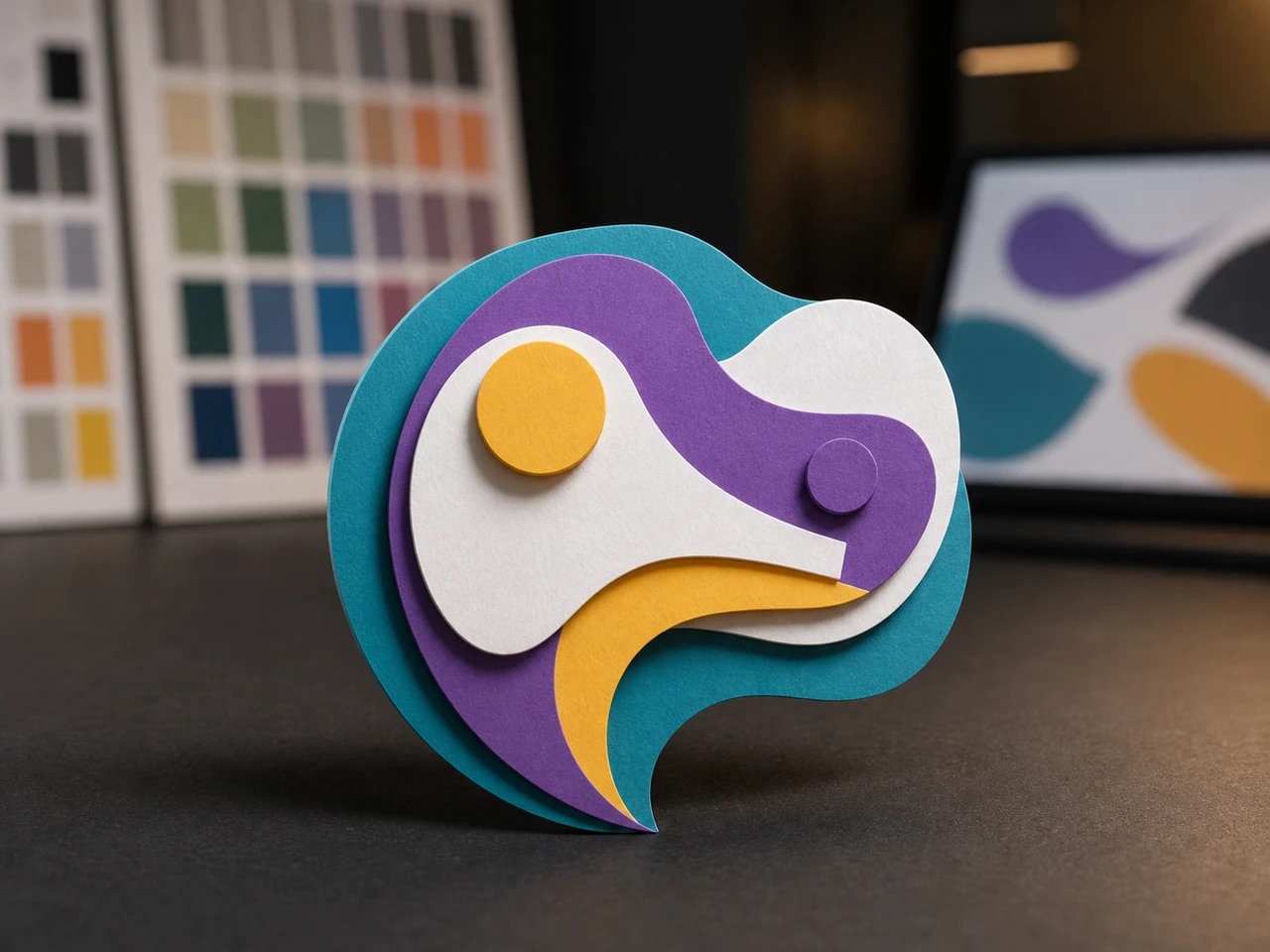
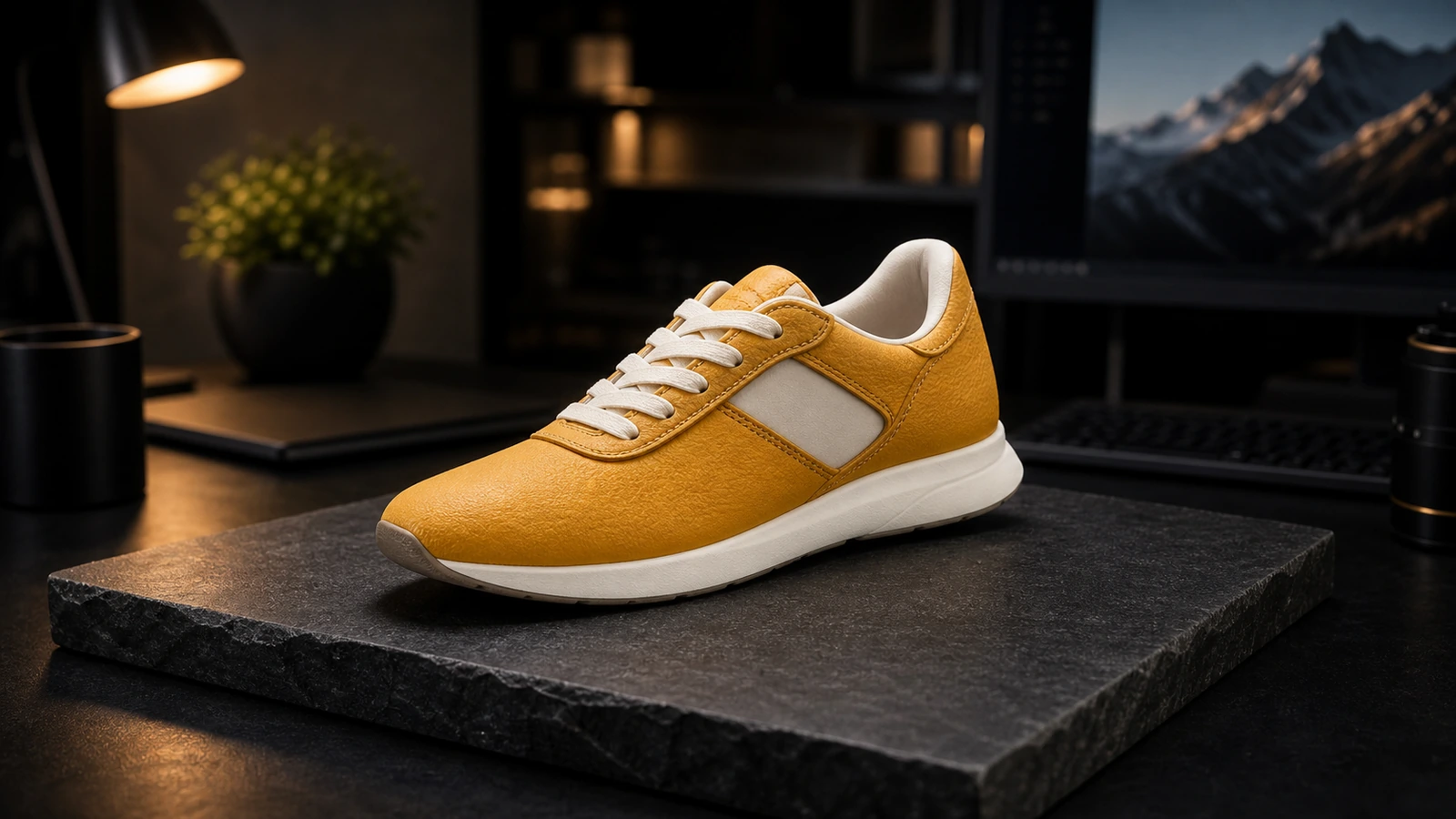
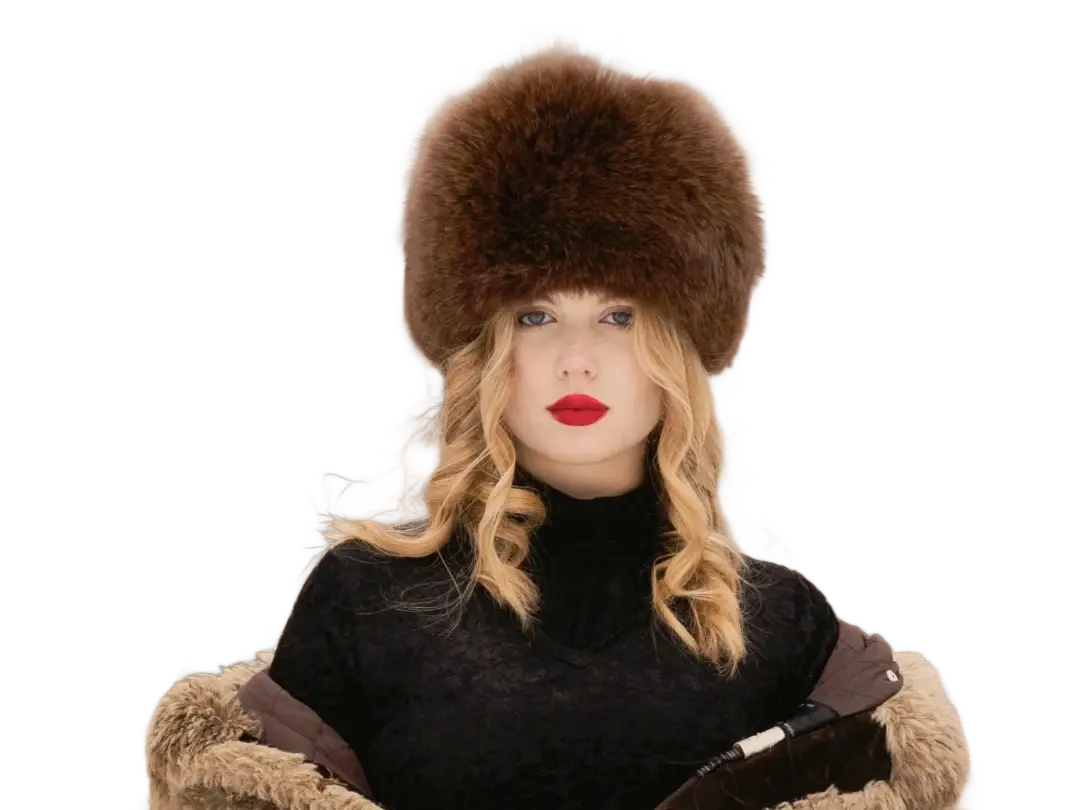
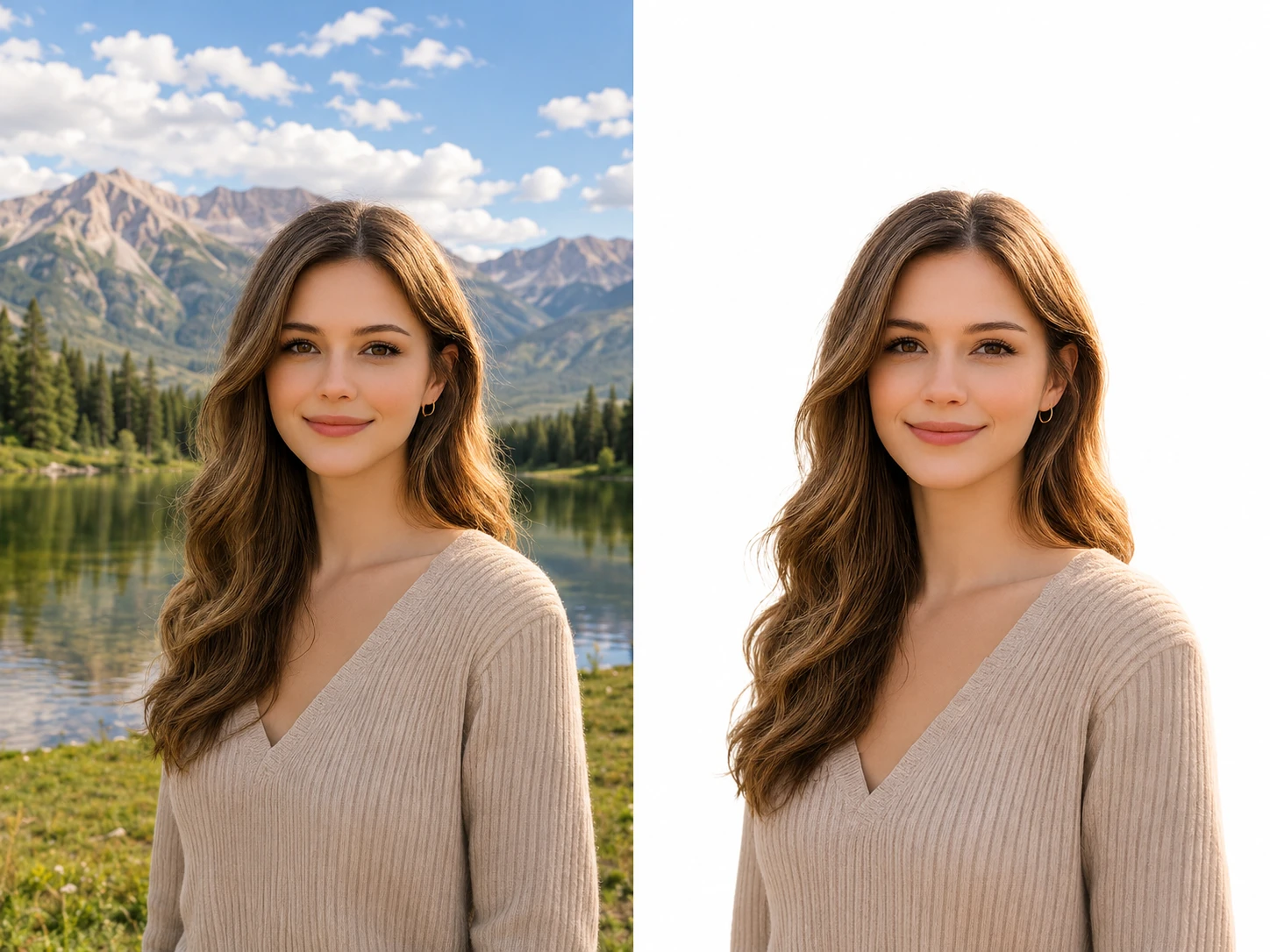
Before
After
01
Portrait to clean cutout
Remove the background from hair, shoulders, and clothing so the subject is ready for profile graphics or branded layouts.
Upload one image and remove its background through the Replicate background remover integration.
Drop an image to start — your result appears here
1 credit per run
Upload a JPG, PNG, or WebP image under 10MB.
The Replicate remover isolates the subject and returns a transparent PNG.
Open, download, or save the cutout back to your history.
Three concrete moments where this tool saves a step.
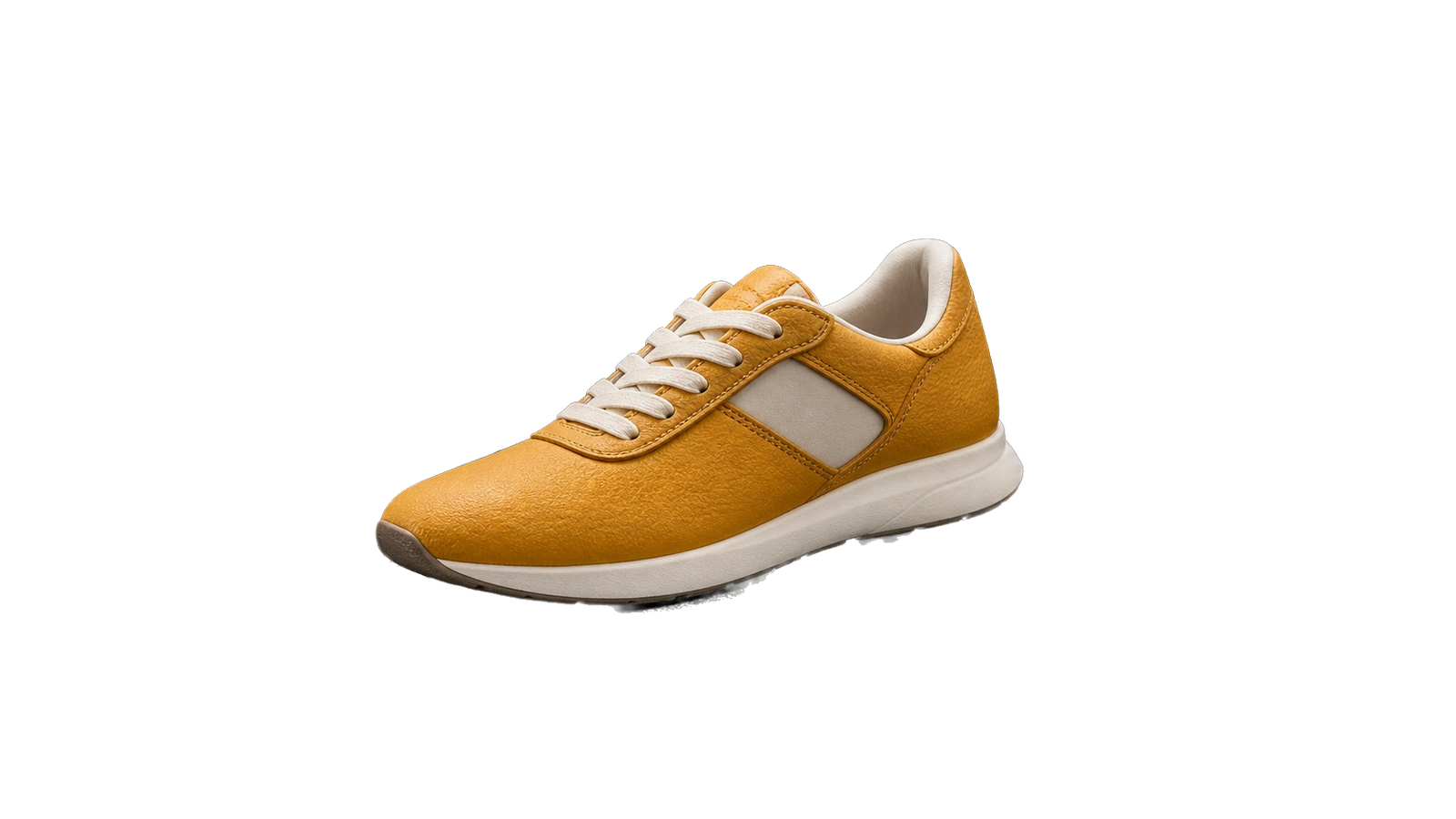
Drop product on any background for ads, decks, or marketplace listings.
Isolate a subject from a busy backdrop for LinkedIn or press kits.
Generate cutouts you can layer into editorial or social compositions.
Drag each image to see what changes, then run the same workflow on your own upload.
Remove the background from hair, shoulders, and clothing so the subject is ready for profile graphics or branded layouts.
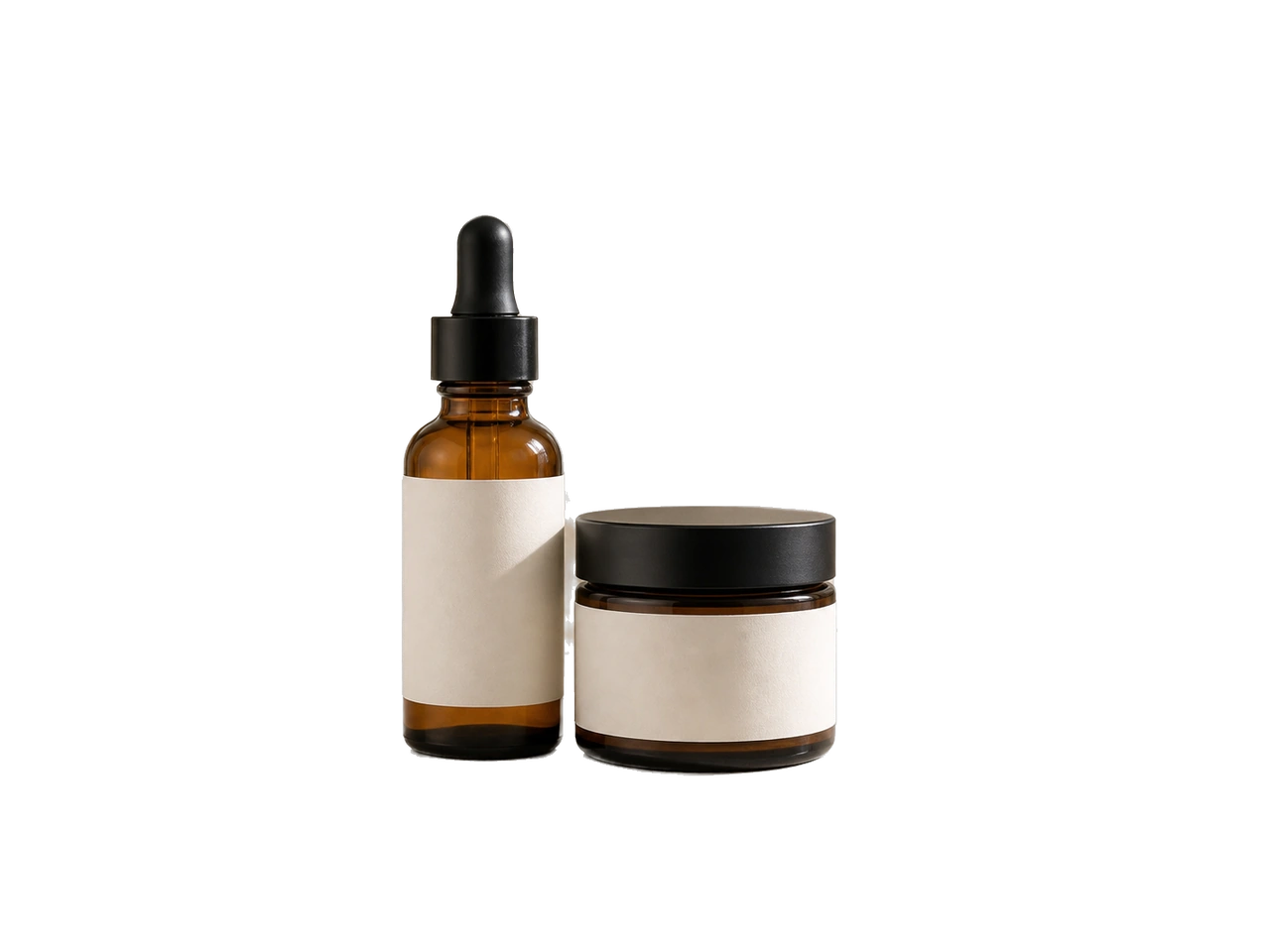
Create transparent product cutouts for storefronts, catalogs, ads, and quick background swaps.
Extract generated characters, stickers, or assets so they can be reused in new scenes and compositions.
The result lands as a clean transparent asset, ready for product shots, portraits, or collages.
Cut out a generation and feed it back as a reference without leaving PixMelody.
The same Studio rail keeps your cutouts in history for reuse and download.
GPT Image 2
GPT Image 2 takes a long brief and gives back a finished image with the type set right, the references locked, and the world it depicts true to life — what diffusion-only models still get wrong.
Nano Banana 2
Nano Banana 2 keeps the speed of the base model but adds a quality dial — preview at 1K, sign off at 2K, ship at 4K. The detail in faces, hands, and material textures survives the upscale.
Fashion Collage Generator — AI Editorial Collage
Turn photos into editorial fashion collages — layered outfits, magazine-grade composition, clean negative space. Drop straight into brand moodboards, lookbook concepts, seasonal campaigns, and creative proposal visuals.
AI Action Figure Generator
Turn any person, brand mascot, or product concept into a collectible action figure — with blister-pack packaging, themed accessories, and studio product photography. Ready for creator merch concepts, mascot pitches, and product proposal visuals.
LinkedIn Headshot Generator
Upload a casual selfie and get a studio-grade LinkedIn headshot in 30 seconds. PixMelody swaps in proper attire, cleans up lighting and background, and preserves your face — ready for LinkedIn, resumes, and team pages.
It automatically separates the main subject from the background and returns a transparent PNG. It is useful for product photos, profile pictures, social posts, thumbnails, presentations, ads, and collage assets.
Use a clear image where the subject is in focus and visually separated from the background. Product shots, portraits, objects, vehicles, and pets usually work well. Busy scenes, low contrast edges, motion blur, transparent glass, smoke, shadows, or hair against a similar background can require a second edit pass.
The AI is designed to preserve fine edges, including hair and soft outlines, but difficult boundaries can still need manual cleanup. For the best result, start with a higher-resolution image and avoid backgrounds that match the subject color too closely.
Yes. Download the transparent PNG and place it on a white, brand-colored, lifestyle, or AI-generated background in your editor or PixMelody workflow. This is especially useful for marketplace listings, campaign visuals, and social media templates.
Upload JPG, PNG, or WebP images under the tool limit. The result is returned as a transparent PNG so it can be layered into design tools without a white box around the subject.
You can use your cutout in commercial work when you have the rights to the uploaded image and the subject in it. Removing a background does not remove copyright, trademark, model-release, or product-licensing obligations.
Try a sharper source image, crop closer to the subject, increase contrast between the subject and background, or run the cutout through a manual editor for edge repair. Background removers work best when the AI can clearly tell foreground from background.